Audit Sentinel User Guide
Using the Auditor tool and reading your billing audit report
- Open Auditor from the subscriber navigation.
- Complete encounter type, time (if applicable), clinical note, CPT/modifiers, and ICD-10 codes.
- Click Run Billing Audit and wait for the three-pass analysis to finish.
- Use the report sections to identify compliance status, risk category, documentation gaps, and next steps.
This guide is for Audit Sentinel subscribers who already have account access. It explains how to open Auditor, run a billing audit, read the report, and decide what to do next.
This guide does not cover signup, free trial setup, pricing, or account onboarding. Those topics are covered separately in the onboarding documentation.
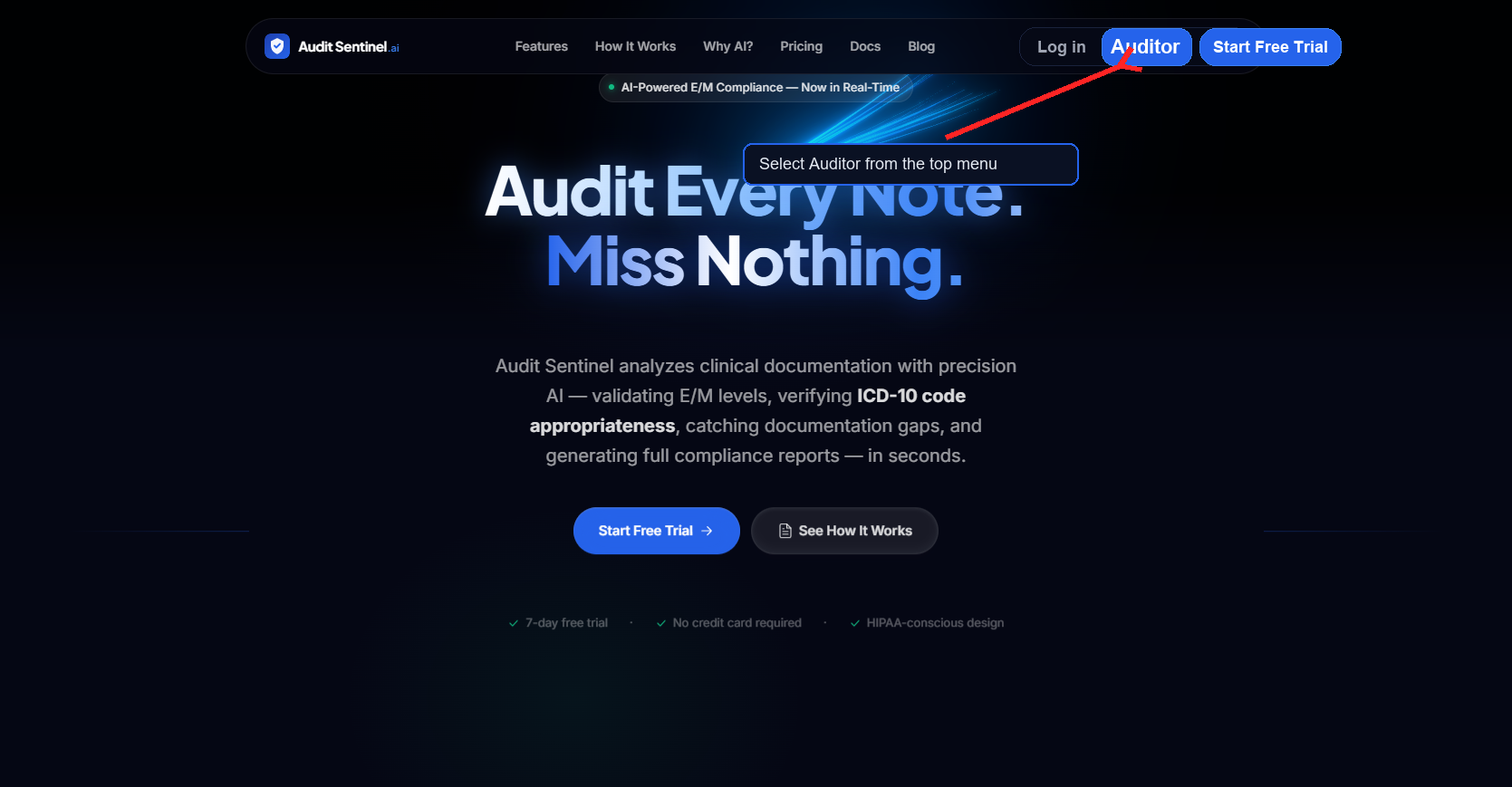
After signing in to Audit Sentinel, use the top navigation menu to open Auditor. Subscriber accounts see the Auditor button in the header navigation.
If Auditor is not visible, confirm you are signed in with a subscriber account that has Auditor access.
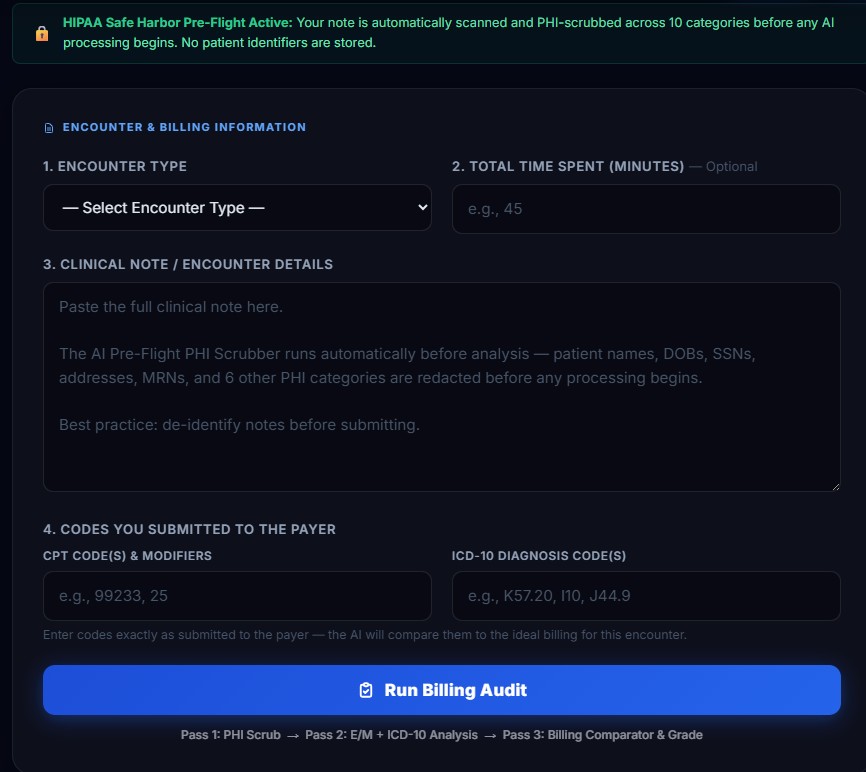
The Auditor form collects the encounter details and billing codes being reviewed. Complete the fields as accurately as possible before running the audit.
Audit Sentinel displays a HIPAA Safe Harbor Pre-Flight notice at the top of the form. The system PHI-scrubs the note before AI processing begins. Avoid entering patient identifiers when they are not needed for the audit.
| Field | What to Enter | Notes |
|---|---|---|
| Encounter Type | Select the visit type, such as New Office Patient or Established Office Patient. | Choose the option that matches the encounter being audited. |
| Total Time Spent | Enter total minutes, if the encounter uses time-based support. | Optional. Leave blank if time is not relevant. |
| Clinical Note / Encounter Details | Paste the note or encounter documentation. | Remove unnecessary identifiers before submitting. |
| CPT Code(s) & Modifiers | Enter the code or codes exactly as submitted to the payer. | Include modifiers when applicable. |
| ICD-10 Diagnosis Code(s) | Enter diagnosis codes tied to the encounter. | The AI compares diagnosis support against the note. |
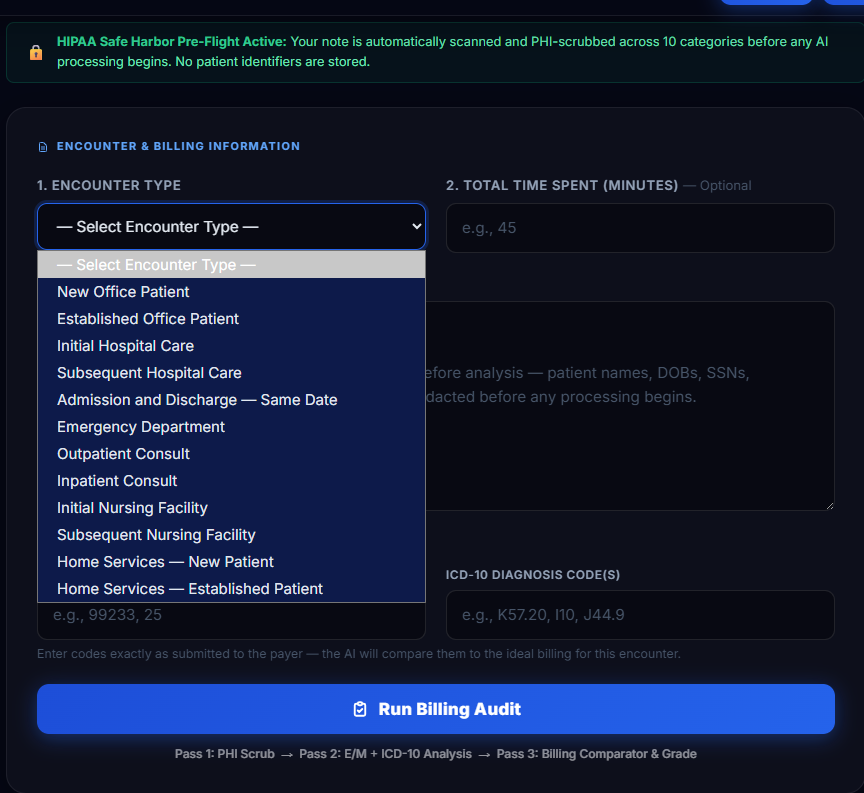
Open the Encounter Type dropdown and select the encounter category that best matches the visit. The selected type helps Audit Sentinel compare the documentation against the correct E/M context.
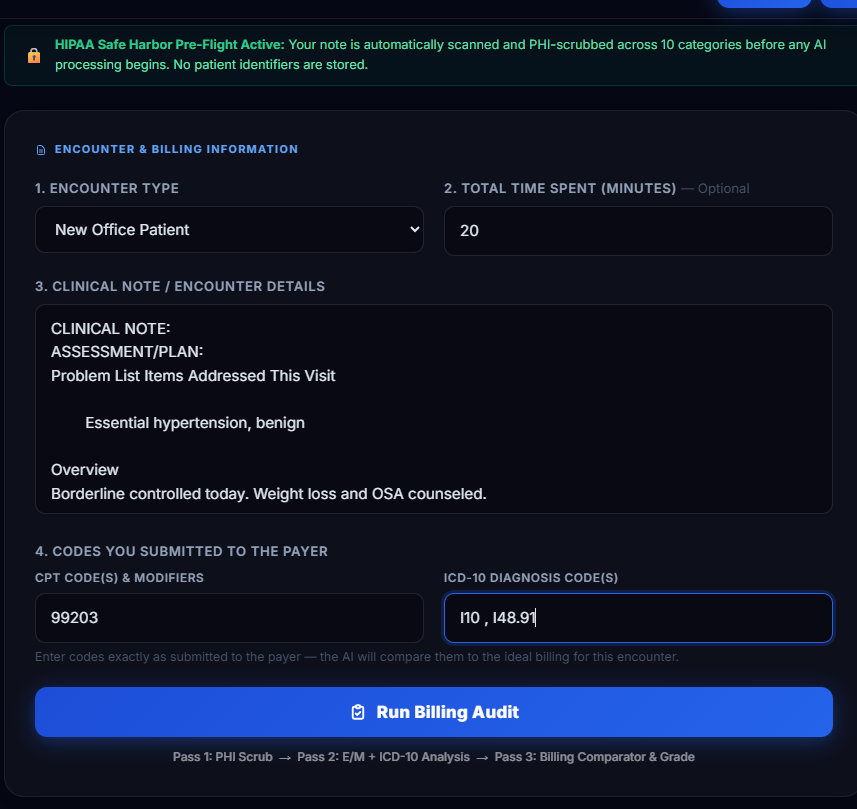
When the form is complete, review the encounter type, optional time, clinical note, CPT/modifier fields, and ICD-10 codes. Then select Run Billing Audit.
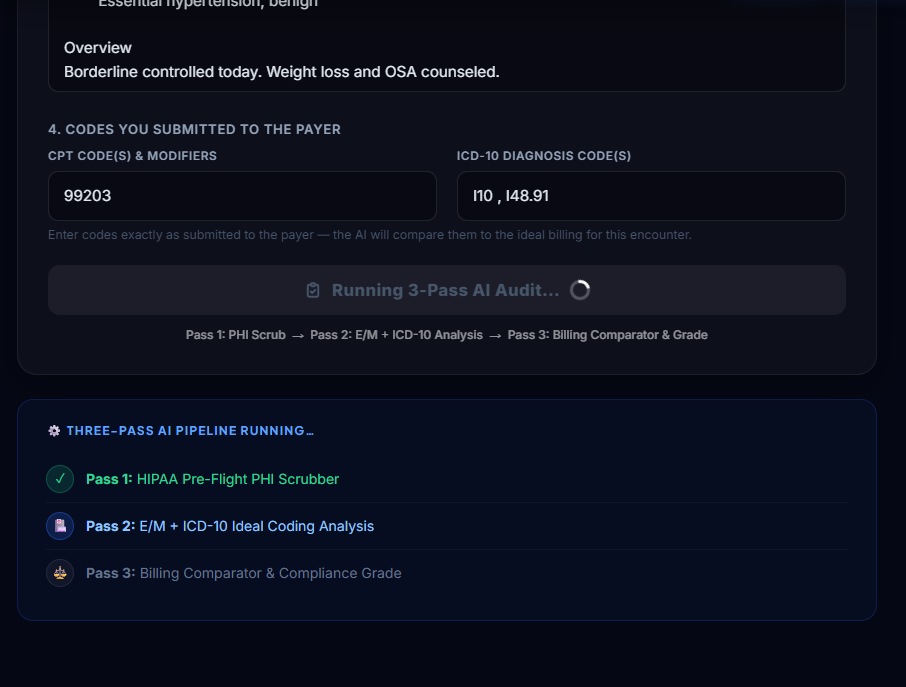
Audit Sentinel runs three passes: PHI Scrub, E/M + ICD-10 Analysis, and Billing Comparator & Grade. Wait for the pipeline to finish before navigating away.
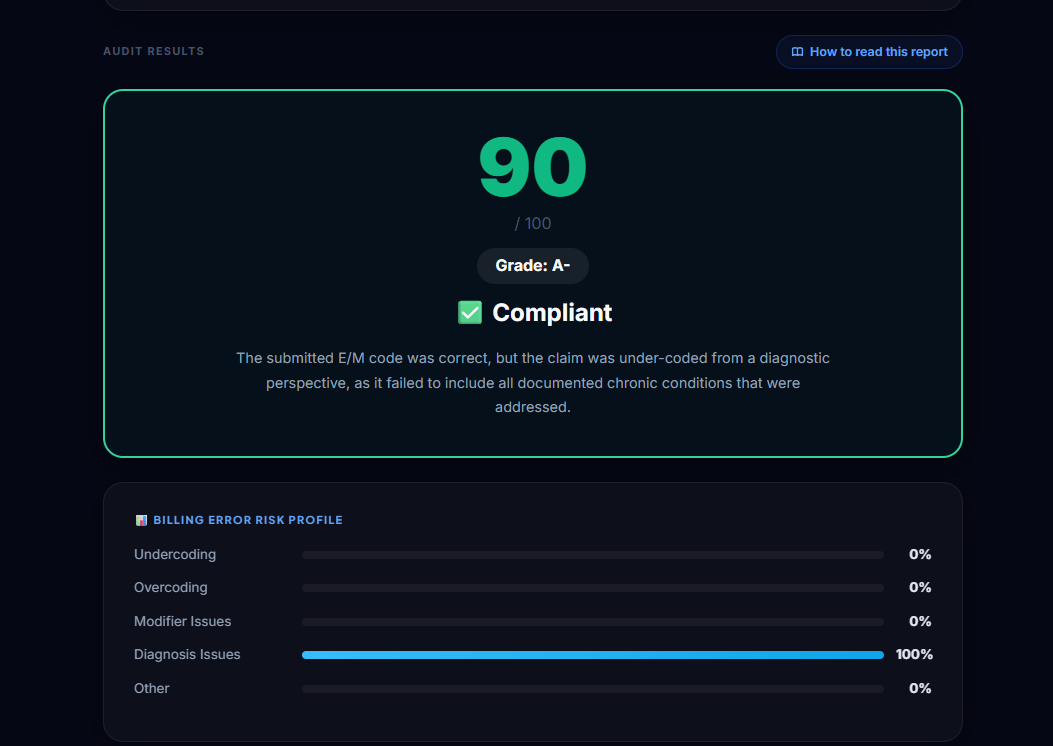
The Grade Card is the first report summary. It provides a numeric score, letter grade, plain-language status, and a short explanation of the main result.
The Billing Error Risk Profile shows where audit risk is concentrated across five categories: undercoding, overcoding, modifier issues, diagnosis issues, and other issues. The longest bar is the primary area to review.
| Score | Interpretation | Recommended Next Step |
|---|---|---|
| 95+ | Excellent support. | File with confidence and archive the report. |
| 85–94 | Strong result with minor improvement opportunities. | Review CDI guidance and improve future documentation. |
| 75–84 | Documentation gaps may create payer questions. | Address Issues Found before resubmission when practical. |
| 60–74 | High-risk result. | Review with coding or compliance staff before submitting. |
| Below 60 | Critical compliance exposure. | Hold the claim pending documentation and code review. |
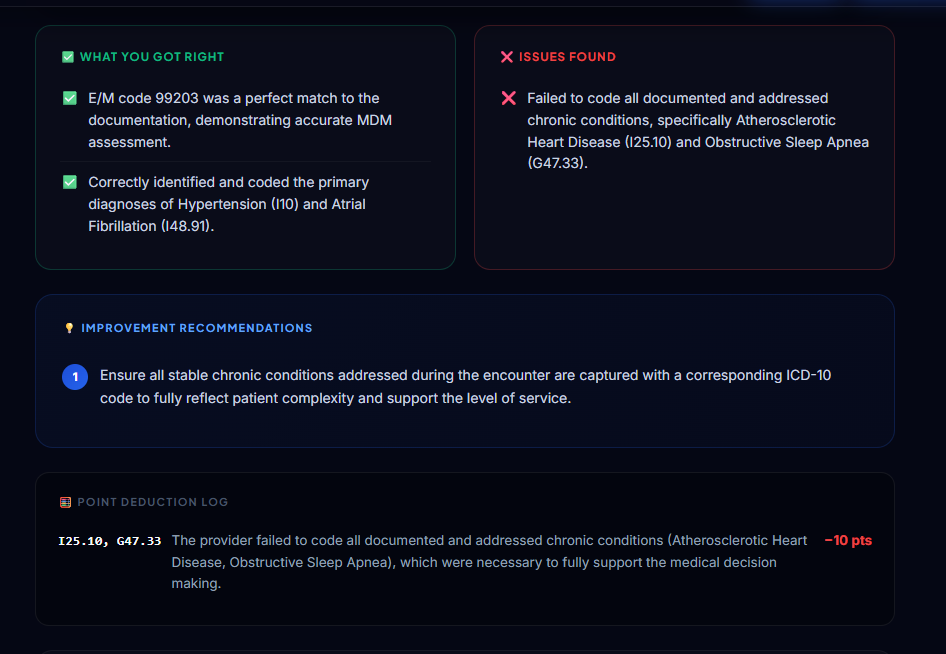
What You Got Right lists documentation and coding elements the audit confirmed. Treat this as a checklist of practices to keep using consistently.
Issues Found lists specific gaps, mismatches, missing elements, or coding concerns. Improvement Recommendations translate those findings into prioritized next actions.
The Point Deduction Log shows why the score moved down from 100. Start here when a score is lower than expected — it identifies which issue cost the most points.
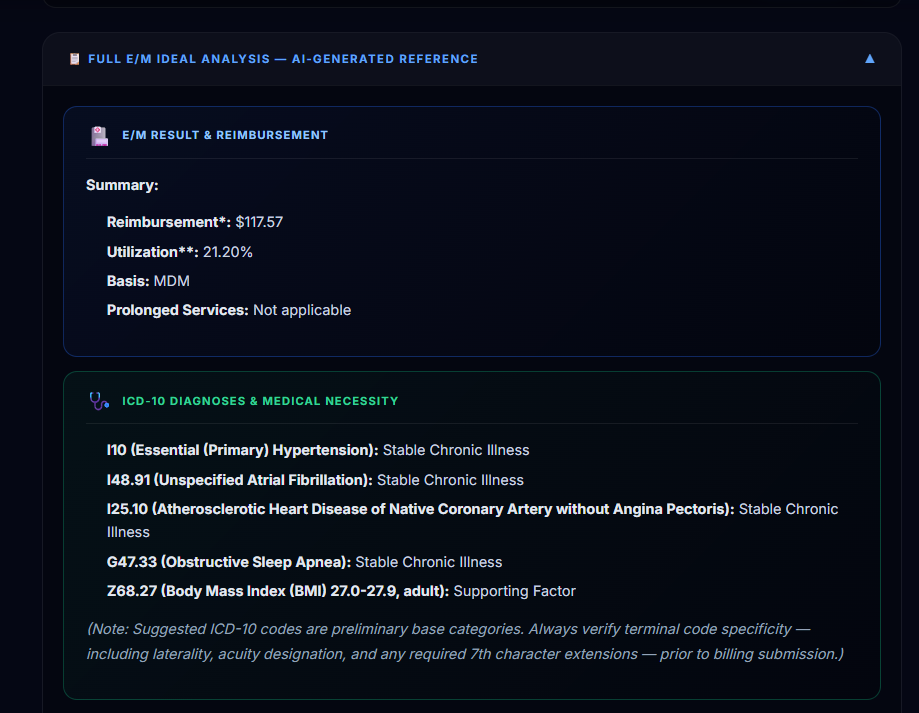
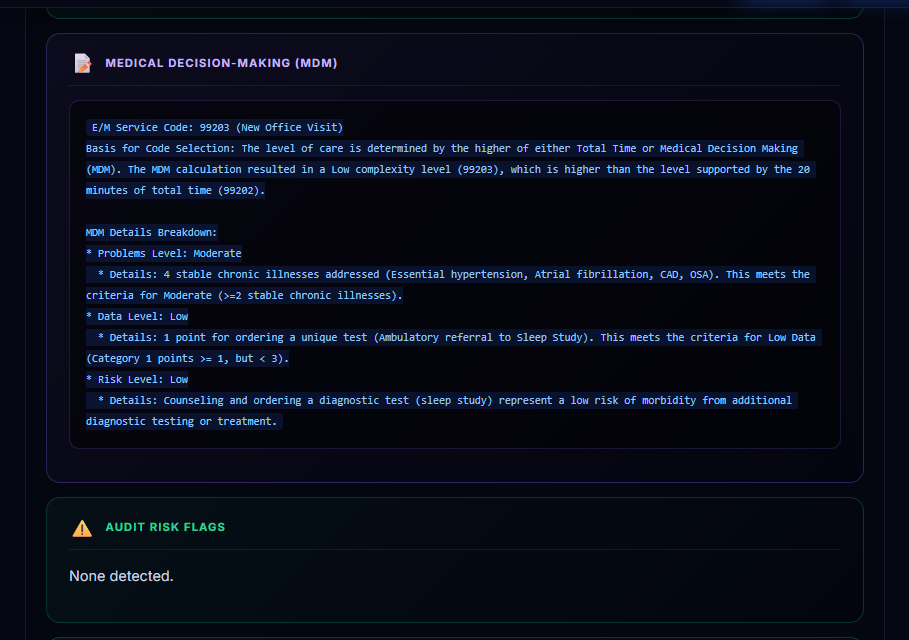
Open Full E/M Ideal Analysis to see Audit Sentinel’s independent reference analysis for the encounter. This section shows what the documentation appears to support before considering the submitted code.
Use this section to understand the supported E/M result, reimbursement context, diagnosis mapping, medical necessity, MDM reasoning, audit flags, and CDI suggestions.
The Documentation Improvement section suggests documentation elements that could strengthen similar future notes. Use CDI guidance prospectively.
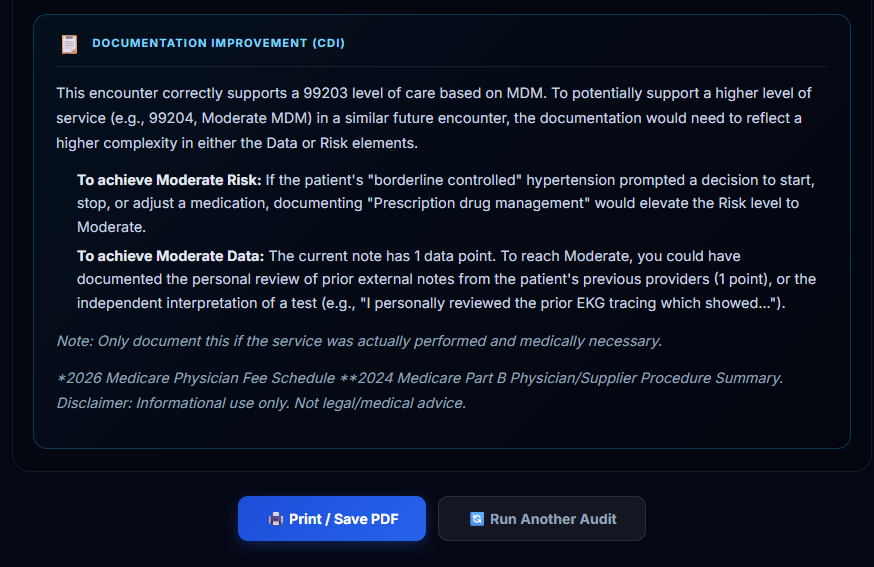
Use Print / Save PDF to keep a record of the audit result. Save the report with the encounter’s internal documentation according to your organization’s retention policy.
The saved report can support coding review, provider education, documentation improvement, and internal audit workflows.
Audit Sentinel is a decision-support tool, not a replacement for certified professional judgment. Payer-specific LCD policies, specialty rules, local compliance requirements, and the full patient record may affect final coding decisions.
When the report identifies meaningful risk, route the encounter to a certified coder, billing lead, compliance officer, or other qualified reviewer before final claim submission.